RSVP is the second step of the Website editor: everything about how guests reply to your invitation, in one place.
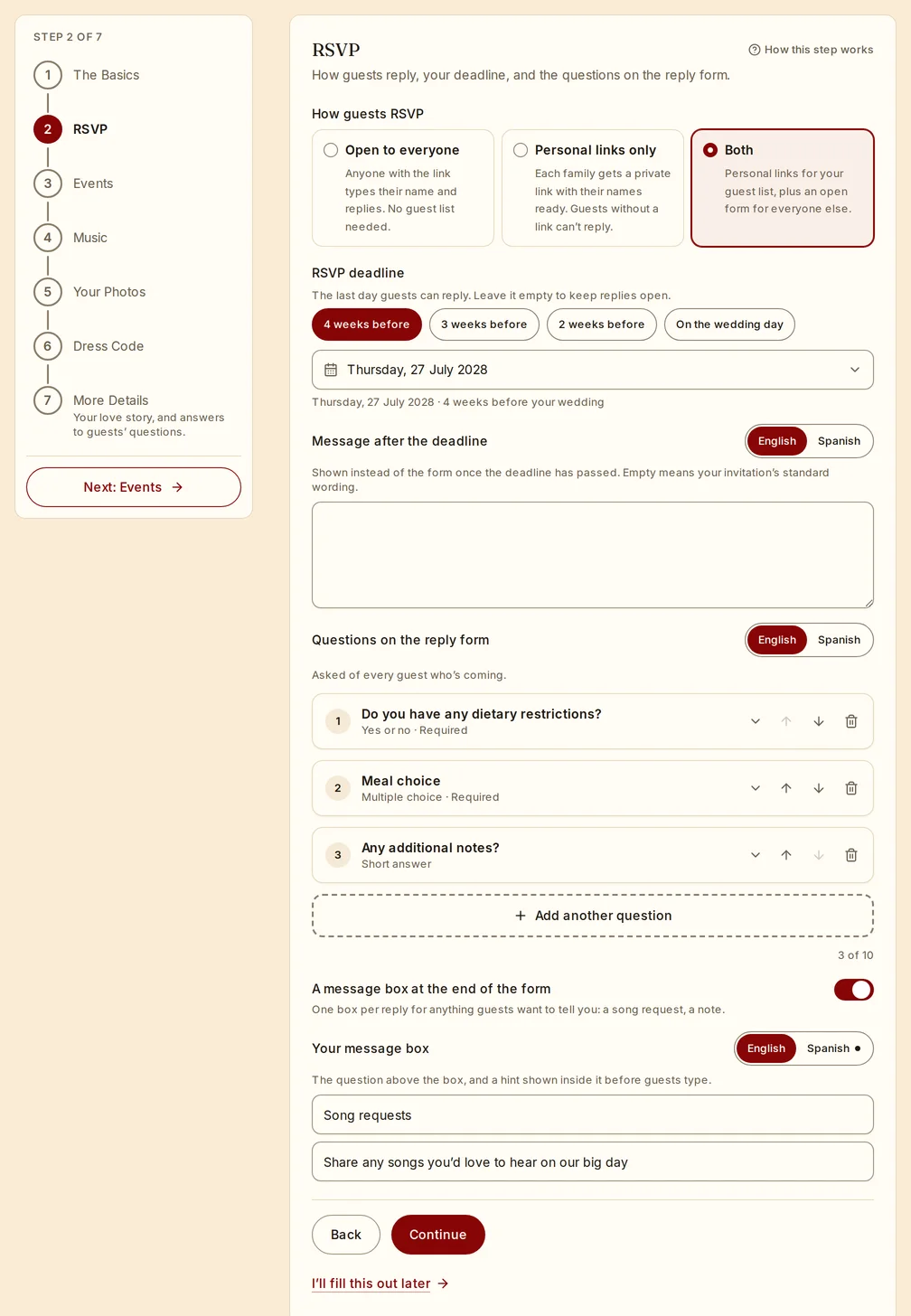
How guests RSVP
Three cards: open to everyone, personal links only, or both. Tap one. It’s the one choice that changes how your dashboard works, so it has a guide of its own. Open RSVP, personal links, or both? →
RSVP deadline
Tap a quick pick: 4 weeks before, 3 weeks before, 2 weeks before or On the wedding day. They’re worked out from the wedding date you set in The Basics, and the line under the box says what you chose, like Sunday, 26 July 2026 · 4 weeks before your wedding. Want another day? Tap the box and pick it on the calendar.
Your invitation shows the deadline above the reply form. After that day the form closes, and guests who open it see your Message after the deadline, or your invitation’s standard wording if you leave that box empty.
A deadline can’t be after your wedding day, and quick picks that have already passed aren’t offered. Caterers usually want final numbers two weeks out, so 3 or 4 weeks before gives you time to chase the stragglers.
Questions on the reply form
Every guest who says they’re coming answers these on the reply form. Keep it to what you really need: two or three questions is plenty.
Tap Add a question and choose a kind:
- Yes or no: guests tap Yes or No. Do you have any dietary restrictions?
- Multiple choice: guests pick one of the choices you list. Which main course would you like? Chicken, fish or vegan.
- Short answer: guests type a few words. Anything else we should know?
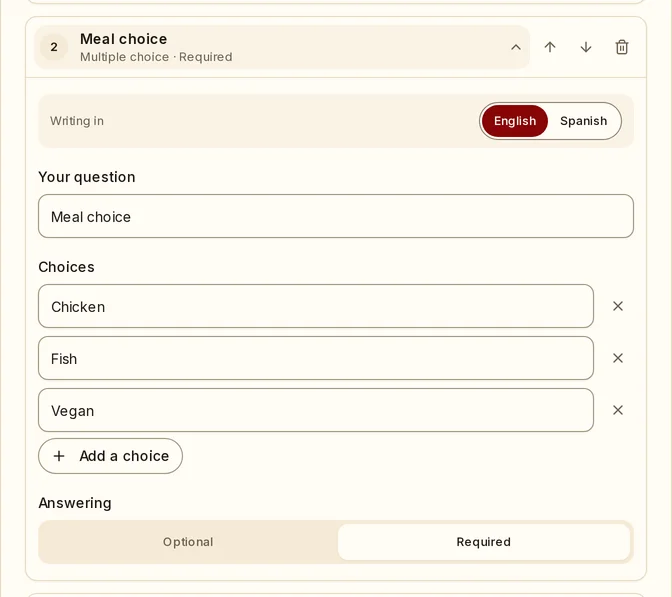
Each question is Optional or Required. Required means guests can’t send their reply until they’ve answered it.
Every question in the list is on the form. Tap a question to open it, use the arrows to reorder, and the bin to take it off. Removing a question guests have already answered removes those answers from your responses too, so we ask first.
A saved question keeps its kind. To turn a yes/no question into a multiple choice, remove it and add a new one.
Guests’ answers show in RSVP Responses → Responses: tap a guest who said yes. Track and manage your RSVPs →
A message box at the end of the form
Switch it on to give every reply one free-text box. Write the question above it, like Any song we should play?, and a hint to show inside it. Guests use it for song requests, a note to you, or who they’d love to sit with, and what they write shows with their reply.
Two languages?
Use the language toggle to write each question, choice and hint in both. A dot on the toggle means a language still needs its wording. More on two languages →
Ready to send your invitation? Sending your invitation? at the bottom of the step takes you to Sharing, where you set the message and your link’s preview.
When you’re done, press Save & continue. You can come back any time from RSVP Responses: tap RSVP settings at the top.